The best way to automate LinkedIn posting with n8n is to get past the OAuth setup first — which is where 90% of people get stuck.
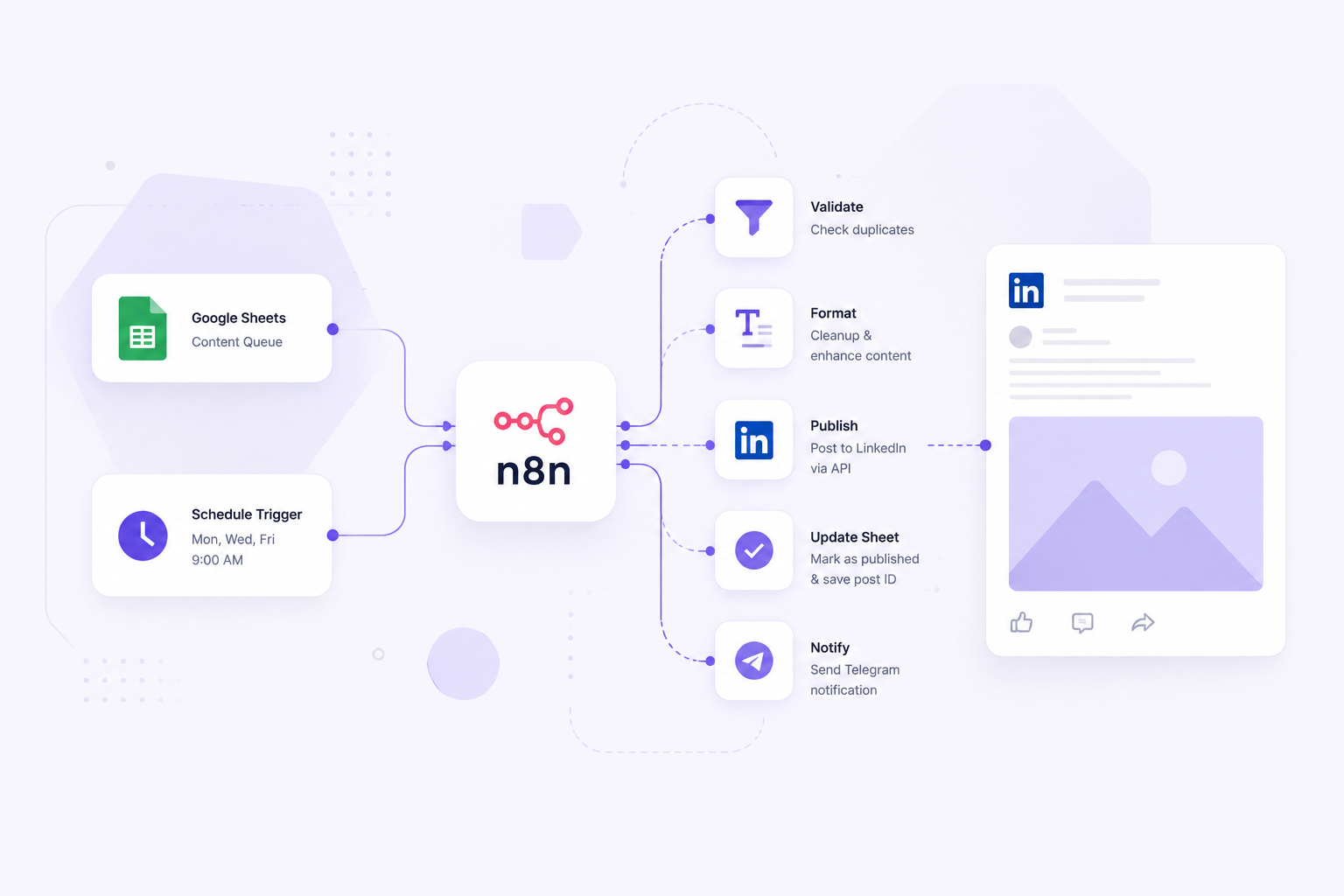
This guide covers the exact workflow I run in production: a scheduled n8n workflow that reads posts from Google Sheets, deduplicates them, posts via the LinkedIn API, and sends a Telegram confirmation — no manual intervention, no third-party scheduler fees.
If you’re hitting a 403 Forbidden error, a token expiry issue, or posts are publishing as duplicates — the fixes are all here.
What the Workflow Does
Before getting into the setup, here’s what the finished workflow accomplishes:
- Reads a content queue from a Google Sheet (posts waiting to be published)
- Checks for duplicates — verifies the post hasn’t already been published
- Formats the content — adds line breaks, emojis, and hashtags automatically
- Posts to LinkedIn via the official API
- Updates the Google Sheet — marks the post as published with timestamp
- Sends a Telegram notification confirming the post went live
The workflow runs on a schedule — I have it set to post Monday, Wednesday, and Friday at 9am.
Table of Contents
Prerequisites
Before building the workflow you need:
- n8n (cloud or self-hosted)
- LinkedIn Developer App — to get API credentials
- Google Sheets — for the content queue (free)
- Telegram Bot (optional) — for notifications
The LinkedIn API setup is the most complex part. Everything else is straightforward.
Step 1: Set Up Your LinkedIn Developer App
The LinkedIn API requires OAuth 2.0 authentication. Here’s how to set it up:
1.1 Create a LinkedIn App
- Go to linkedin.com/developers
- Click Create App
- Fill in:
- App name:
n8n Automation(or whatever you prefer) - LinkedIn Page: select your personal profile or company page
- App logo: upload any image
- App name:
- Click Create App
1.2 Configure OAuth Settings
- In your app, go to the Auth tab
- Under OAuth 2.0 Settings > Authorized redirect URLs add:
https://oauth.n8n.cloud/oauth2/callback(Or your n8n instance URL if self-hosted: https://your-n8n-domain.com/oauth2/callback)
- Note down your Client ID and Client Secret
1.3 Request Required Permissions
In the Products tab, request access to:
- Share on LinkedIn — allows posting to your profile
- Sign In with LinkedIn using OpenID Connect — required for authentication
Note: LinkedIn’s API approval can take a few days. For personal profiles, Share on LinkedIn is usually approved quickly.
1.4 Find Your LinkedIn URN
You’ll need your LinkedIn person URN to post on behalf of your profile:
- Go to your LinkedIn profile and copy the URL — your profile ID is the string after /in/. Or make a GET request to https://api.linkedin.com/v2/userinfo with your OAuth token; the «sub» field is your person ID.
- Or use the LinkedIn API to get it:
https://api.linkedin.com/v2/userinfo
Your URN looks like: urn:li:person:XXXXXXXXXX
Step 2: Set Up the Google Sheet Content Queue
Create a Google Sheet with these columns:
| Column | Header | Description |
|---|---|---|
| A | post_content | The LinkedIn post text |
| B | status | pending / published / skip |
| C | scheduled_date | Optional: specific date to publish |
| D | published_at | Timestamp when published (filled by n8n) |
| E | post_id | LinkedIn post ID (filled by n8n) |
Example rows:
Row 2: "Just published a deep dive on n8n vs Zapier vs Make..." | pending | | |
Row 3: "The fastest way to automate your blog in 2026..." | pending | | |
Keep a backlog of 10-20 posts ready. This way the workflow always has content to publish.
Step 3: Build the n8n Workflow
Node 1: Schedule Trigger
Node type: Schedule Trigger
Cron expression: 0 9 * * 1,3,5
(Monday, Wednesday, Friday at 9am)
Node 2: Get Posts from Google Sheet
Node type: Google Sheets
Operation: Read Rows
Spreadsheet: [your sheet URL]
Sheet: Sheet1
Filters: status = "pending"
Return All Matching Rows: YES
Limit: 1 (only get the next pending post)
Node 3: Check If Post Exists (Deduplication)
This is the critical node that prevents duplicate posts — the most common issue with LinkedIn automation workflows.
Node type: Code
Language: JavaScript
javascript
const posts = $input.all();

if (posts.length === 0) {
  // No pending posts — stop workflow
  return [{ json: { status: 'no_posts', message: 'No pending posts in queue' } }];
}

const post = posts[0].json;

// Check if this post was already published
if (post.status === 'published') {
  return [{ json: { status: 'duplicate', message: 'Post already published' } }];
}

// Check if post_content is empty
if (!post.post_content || post.post_content.trim() === '') {
  return [{ json: { status: 'empty', message: 'Post content is empty' } }];
}

return [{ json: {
  status: 'ready',
  content: post.post_content,
  row_index: post._rowNumber
}}];
Node 4: IF Node (Stop if No Posts)
Node type: IF
Condition: {{ $json.status }} equals "ready"
True branch → continue to formatting
False branch → stop workflow
Node 5: Format Post Content
LinkedIn posts have specific formatting requirements. This node cleans and formats the content:
javascript
const content = $input.first().json.content;

// Clean up whitespace
let formatted = content.trim();

// Add line breaks for readability (LinkedIn renders \n as line breaks)
formatted = formatted.replace(/([a-z])\. ([A-Z])/g, '$1.\n\n$2');

// Ensure content doesn't exceed LinkedIn's 3000 character limit
if (formatted.length > 3000) {
  formatted = formatted.substring(0, 2950) + '...';
}

return [{ json: {
  formatted_content: formatted,
  char_count: formatted.length,
  row_index: $input.first().json.row_index
}}];
Node 6: Post to LinkedIn
Node type: HTTP Request
Method: POST
URL: https://api.linkedin.com/v2/ugcPosts
Authentication: OAuth2
Note: The ugcPosts endpoint still works but LinkedIn is migrating
to /rest/posts. For new implementations, consider using the
new Posts API.
Request body:
json
{
  "author": "urn:li:person:YOUR_PERSON_URN",
  "lifecycleState": "PUBLISHED",
  "specificContent": {
    "com.linkedin.ugc.ShareContent": {
      "shareCommentary": {
        "text": "{{ $('Format Post').item.json.formatted_content }}"
      },
      "shareMediaCategory": "NONE"
    }
  },
  "visibility": {
    "com.linkedin.ugc.MemberNetworkVisibility": "PUBLIC"
  }
}
Headers:
Content-Type: application/json
LinkedIn-Version: 202401
X-Restli-Protocol-Version: 2.0.0
Node 7: Update Google Sheet
After posting, mark the row as published:
Node type: Google Sheets
Operation: Update Row
Row Number: {{ $('Check Duplicates').item.json.row_index }}
Values to Update:
  - status: "published"
  - published_at: {{ $now.toISO() }}
  - post_id: {{ $('Post to LinkedIn').item.json.id }}
Node 8: Telegram Notification
Node type: Telegram
Operation: Send Message
Chat ID: [your chat ID]
Text: ✅ LinkedIn post published

{{ $('Format Post').item.json.formatted_content.substring(0, 100) }}...

📅 {{ $now.format('DD/MM/YYYY HH:mm') }}
Step 4: Configure OAuth in n8n
This is where most people get stuck. Here’s the exact process:
- In n8n, go to Credentials > New Credential
- Select LinkedIn OAuth2 API
- Enter your Client ID and Client Secret from the LinkedIn app
- Set Scope:
openid profile w_member_social - Click Connect — a LinkedIn authorization window opens
- Authorize the app
- n8n stores the token automatically
Important: LinkedIn tokens expire after 60 days. Most standard LinkedIn apps do not receive a refresh token, which means you will need to re-authenticate manually every 60 days. n8n will notify you with a 401 error when this happens.
The Deduplication Problem (And How I Solved It)
This is the issue that caused me the most pain. During testing, I accidentally published the same post 20 times because the workflow didn’t check whether it had already run.
The root cause: when you test a workflow multiple times, the Schedule Trigger fires immediately on each test. If the deduplication logic isn’t solid, the same post gets published on every test run.
My fix — three layers of deduplication:
Layer 1: Google Sheet status check — only fetch rows where status = "pending"
Layer 2: n8n Static Data — store the last published post ID in n8n’s persistent storage and check against it before posting
Layer 3: Timestamp check — if the last post was published less than 12 hours ago, skip this run
javascript
// Layer 2: Static Data check
const staticData = $getWorkflowStaticData('global');
const lastPostId = staticData.lastPostId || '';
const currentPostContent = $input.first().json.content;

// Create a simple hash of the content
const contentHash = currentPostContent.substring(0, 50);

if (staticData.lastContentHash === contentHash) {
  return [{ json: { status: 'duplicate', message: 'Same content as last post' } }];
}

// Layer 3: Time check
const lastPublished = staticData.lastPublishedAt ? new Date(staticData.lastPublishedAt) : null;
const now = new Date();
const hoursSinceLastPost = lastPublished ? (now - lastPublished) / (1000 * 60 * 60) : 999;

if (hoursSinceLastPost < 12) {
  return [{ json: { status: 'too_soon', message: `Last post was ${Math.round(hoursSinceLastPost)}h ago` } }];
}

// Update static data after successful post
staticData.lastContentHash = contentHash;
staticData.lastPublishedAt = now.toISOString();

return [{ json: { status: 'ready', content: currentPostContent } }];
Common Errors and Fixes
Fix: 403 Forbidden on POST request
A 403 on the LinkedIn API is the most common error when building this workflow — and the most frustrating, because the error message doesn’t tell you which of the three possible causes is the actual problem.
Here’s how to diagnose and fix each one.
Cause 1: Missing w_member_social permission
This is the most common cause. Your LinkedIn Developer App doesn’t have the Share on LinkedIn product approved, which means the w_member_social scope isn’t available.
Fix:
- Go to your LinkedIn Developer App → Products tab
- Check that Share on LinkedIn shows as «Added» — not «Requested» or «Pending»
- If it’s still pending, LinkedIn usually approves it within 24-48 hours for personal profiles
- Once approved, go to n8n → Credentials → your LinkedIn credential → Reconnect to re-authorize with the new scope
Cause 2: Wrong OAuth scope in n8n
Even if your app has the right permissions, the n8n credential might have been created before the scope was approved — meaning the stored token doesn’t include w_member_social.
Fix:
- In n8n, go to Credentials → find your LinkedIn OAuth2 credential
- Check the Scope field includes:
openid profile w_member_social - If
w_member_socialis missing, add it and click Reconnect - Re-authorize via the LinkedIn popup — this generates a new token with the correct scopes
Cause 3: Incorrect author URN format
The author field in the request body must follow the exact format urn:li:person:XXXXXXXXXX. Any variation — missing the urn:li:person: prefix, using your profile URL, or using your numeric ID alone — returns a 403.
Fix: Make an authenticated GET request to https://api.linkedin.com/v2/userinfo using your OAuth token. The sub field in the response is your person ID. Your full URN is urn:li:person:[sub value].
If you’ve checked all three causes and still get a 403, the issue is almost certainly the token scope. Delete the credential in n8n entirely, create a new one from scratch, and re-authenticate — this forces a clean token with the current app permissions.
Adding Images to LinkedIn Posts
The workflow above posts text-only content. Adding images requires an additional step: uploading the image to LinkedIn’s media API first, then referencing it in the post.
Step 1: Initialize image upload
POST https://api.linkedin.com/v2/assets?action=registerUploadStep 2: Upload the image binary
PUT [uploadUrl from step 1]
Body: [binary image data]
Step 3: Reference the asset in the post
json
"shareMediaCategory": "IMAGE",
"media": [{
  "status": "READY",
  "media": "[asset URN from step 1]"
}]
For most content automation workflows, text-only posts perform comparably to image posts on LinkedIn. I keep the image workflow separate to reduce complexity.
How to Post to a LinkedIn Company Page with n8n
The workflow above posts to your personal profile. Switching to a Company Page requires two changes.
Change 1: Update the author URN
Replace your personal URN with your company page URN:
"author": "urn:li:organization:XXXXXXXXXX"To find your organization ID, go to your LinkedIn Company Page → click Admin tools → the numeric ID is in the URL: linkedin.com/company/XXXXXXXXXX/admin/
Change 2: Add the rw_organization_admin permission
- Go to your LinkedIn Developer App → Products tab
- Request access to Marketing Developer Platform
- Once approved, go to n8n → Credentials → your LinkedIn credential → add
rw_organization_adminto the scope field → Reconnect
That’s the only difference. The rest of the workflow — Google Sheets queue, deduplication, Telegram notification — stays exactly the same.
Important: You must be a Super Admin or Content Admin of the Company Page to post via the API. Editor role is not sufficient.
Post Content Tips for LinkedIn Automation
Since you’re automating content, the quality of your Google Sheet content queue matters more than the workflow itself. If you want to automate content creation end-to-end, check out how to build a fully automated blog with AI and n8n. A few principles I follow:
Hook in the first line — LinkedIn truncates posts after 2-3 lines with a «see more» button. The first line needs to stop the scroll.
Short paragraphs — one to two sentences per paragraph. White space is engagement on LinkedIn.
No external links in the post body — LinkedIn’s algorithm suppresses posts with external links. Put the link in the first comment instead (you can automate this too with an additional API call).
Optimal length — 150-300 words for most posts. Longer posts work for storytelling but need a compelling hook.
Hashtags at the end — 3-5 relevant hashtags. More than 5 looks spammy and LinkedIn’s algorithm doesn’t reward it.
FAQ
Do I need a LinkedIn Premium account to use the API?
No. The LinkedIn API is available to all accounts. You need a free developer app at linkedin.com/developers. Premium doesn’t affect API access.
Can I automate posting to a LinkedIn Company Page instead of my personal profile?
Yes. Replace the author URN with your company page URN: urn:li:organization:XXXXXXXXXX. You’ll also need the w_organization_social scope in your app.
Will LinkedIn ban my account for using the API?
No — using the official LinkedIn API is explicitly permitted by LinkedIn’s Terms of Service. What’s not permitted is scraping or using unofficial automation tools. n8n uses the official API, so you’re fully compliant.
How do I find my LinkedIn person URN?
Make an authenticated GET request to https://api.linkedin.com/v2/userinfo using your OAuth token. The sub field in the response is your person ID. Your URN is urn:li:person:[sub value].
Can n8n handle LinkedIn’s 60-day token expiry automatically?
n8n refreshes OAuth tokens automatically when they expire, as long as the LinkedIn app is still active and the refresh token is valid. If you haven’t run the workflow in more than 60 days, you may need to re-authenticate manually.
What’s the maximum post length on LinkedIn?
LinkedIn does not officially publish a daily post limit for API access. In practice, workflows posting a few times per week are well within safe limits.
